Realistic Sketch to Image Made Easy - Fast Image AI Generates Realistic Art Images in One Click
Realistic sketches drawn in a flash of inspiration feature solid lines, precise outlines, and restrained details, embodying the creator’s ultimate pursuit of realistic textures. However, transforming rough sketches into exquisite realistic art images often poses challenges such as insufficient hand‑painting skills, time‑consuming post‑editing, and inadequate detail restoration, leaving high-quality creative ideas unfulfilled. Now, without professional painting skills or hours of detail refinement, you can convert realistic sketches into high-definition, lifelike, and texture-rich realistic art images in one click using the Sketch-to-Image function of Fast Image AI. The entire process takes less than a minute, easily solving the problem of converting realistic sketches into finished images.
This tutorial will guide you through the complete workflow: from plain realistic sketches to stunning realistic art images, even beginners can get started easily. Whether it is a realistic line drawing by hand on paper, a realistic sketch created with a graphics tablet, or a realistic outline casually sketched on a tablet, the Sketch-to-Image generator can accurately restore your creativity and deliver professional‑level realistic effects. It supports multiple conversion scenarios including hand-drawn-to-image and line art-to-image, fully covering the needs of realistic creation.
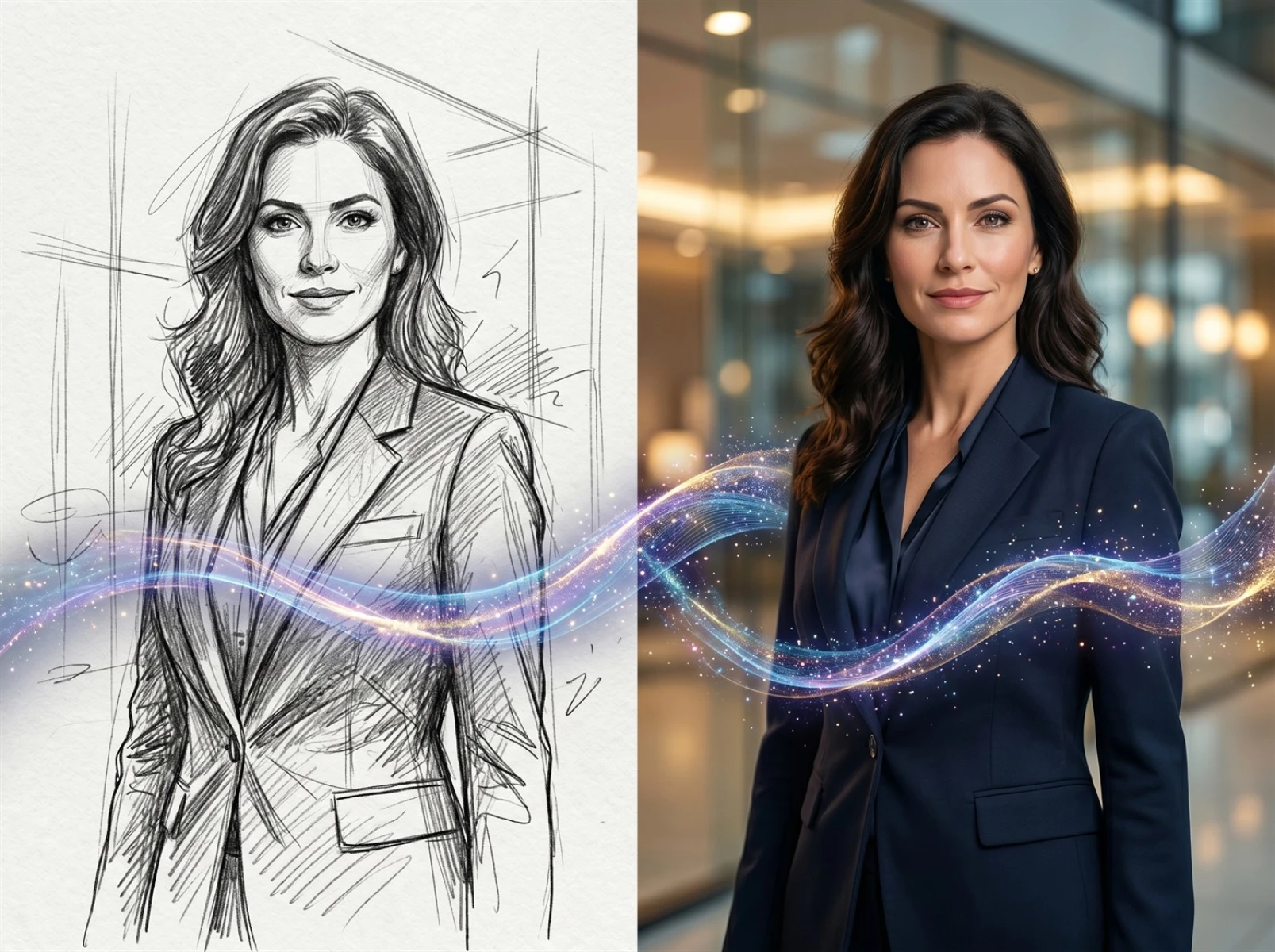
I. Why Choose Fast Image AI to Monetize Your Realistic Sketches?
Convert your carefully drawn realistic sketches into high-definition, lifelike realistic art images with one click via Sketch-to-Image. No professional realistic painting skills or tedious post-retouching are required to bring your realistic ideas from paper to reality. Images generated based on realistic sketches fully retain the original composition and realistic logic, making each piece unique and ensuring your realistic creativity never gets stuck.
1. Low-Cost and High-Efficiency Output of Realistic Works
Realistic creators, portrait designers, and realistic illustrators often develop numerous realistic sketch concepts but lack the time to refine details such as textures and lighting one by one. Fast Image AI’s Sketch-to-Image generator allows you to create a realistic sketch in 2 minutes and generate a finished realistic piece in 10 seconds, greatly improving realistic creation efficiency. According to creative industry data, most realistic creators have shortened their production cycles with AI hand-drawn-to-image tools, focusing on creative conception rather than tedious drawing work.
2. Full Realistic Texture for Diverse Scenario Needs
Fast Image AI focuses on optimizing realistic styles and supports various subdivided realistic types such as hyper-realism, portrait realism, still life realism, and scene realism. Leveraging line art-to-image technology, one realistic sketch can switch between different realistic textures, easily adapting to portrait customization, realistic illustration, cultural and creative design, realistic posters, conceptual realistic images, and other scenarios, making your realistic creativity suitable for more applications.
3. Unlock Professional Realistic Textures for Absolute Beginners
No need to master advanced realistic painting techniques or complex post-editing software. Even realistic sketches with unsmooth lines and simple details can be accurately identified by Fast Image AI’s Sketch-to-Image function for their realistic line logic, outputting realistic art images with delicate lighting, lifelike textures, and rich details. Everyone can easily visualize realistic creativity through hand-drawn-to-image conversion.
II. What You Need to Prepare Before Starting
Before converting realistic sketches into exquisite realistic art images with the Sketch-to-Image generator, prepare the following materials to easily achieve your desired realistic effect:
• A clear realistic sketch: Hand-drawn on paper, created with a graphics tablet/tablet – the higher the contrast between lines and background, and the clearer the outline, the higher the accuracy of line art-to-image recognition.
• A mobile phone or basic scanner: For paper realistic sketches, shoot under even lighting or scan them into digital versions, retaining clear realistic lines and outline details to lay a solid foundation for hand-drawn-to-image conversion.
• Fast Image AI Realistic Generator: A professional Sketch-to-Image tool that accurately restores realistic creativity and outputs high-definition textured images.
• Realistic style reference image (optional): Prepare a reference image of your favorite realistic style in advance to help the Sketch-to-Image generator produce realistic artworks that meet your expectations.
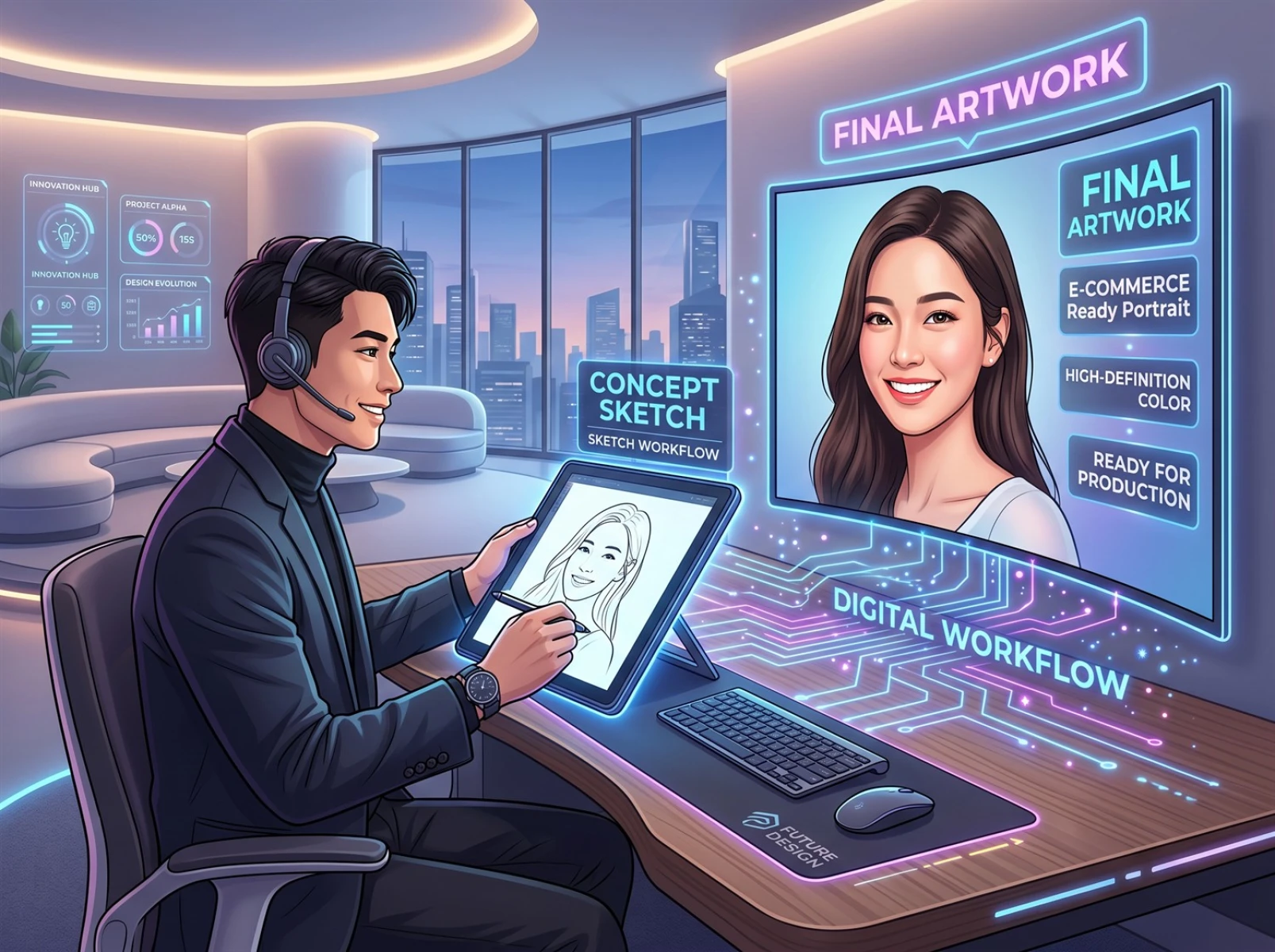
III. Step-by-Step Tutorial: Convert Realistic Sketches to Exquisite Realistic Art Images in One Click
Step 1: Draw Your Realistic Sketch
Start with a clear basic realistic sketch – no need for perfect lines, as the Sketch-to-Image AI can easily recognize rough realistic brushstrokes. Follow these tips to double the effect of line art-to-image conversion:
• Outline realistic subjects with clear and coherent lines: For realistic figures, still lifes, or scenes, draw key outline lines thicker; avoid overly faint or broken lines to prevent recognition errors in hand-drawn-to-image conversion.
• Simply mark key realistic details: Use short lines or symbols to mark core realistic elements, such as facial features of figures, lighting direction of still lifes, and perspective of scenes, helping the Sketch-to-Image generator accurately capture the key points of your realistic creativity.
• Keep the background clean and simple: Prioritize white or light-colored solid backgrounds to reduce interference from redundant lines and clutter, avoiding blurring, disorder, or texture discontinuities when generating realistic images via Sketch-to-Image.
Step 2: Digitize Your Realistic Sketch Quickly
Paper realistic sketches must first be converted into clear digital versions to provide high-quality materials for line art-to-image and hand-drawn-to-image conversion. Three simple methods to achieve this easily:
• Direct mobile phone shooting: Lay the realistic sketch flat on a table, ensure even lighting without shadows, shoot vertically, crop excess blank areas, and focus on the main body of the realistic sketch to meet the input requirements of Sketch-to-Image.
• Scanned file import: Scan with a scanner at 300DPI or higher to fully retain realistic line details, with clarity superior to mobile phone shooting, more conducive to the Sketch-to-Image generator restoring realistic textures.
• Basic optimization: Fine-tune brightness and contrast via mobile phone album tools to enhance the difference between realistic lines and background, export files in PNG or JPG format with a resolution of no less than 512×512 pixels to improve the success rate of hand-drawn-to-image conversion.
Step 3: Upload to Fast Image AI
The core Sketch-to-Image conversion step: upload the digitized realistic sketch to Fast Image AI and generate exquisite realistic art images in one click:
1. Open the Fast Image AI official website: Enter the exclusive page of the Sketch-to-Image generator; no complicated registration is required, and you can log in quickly to use the line art-to-image function.
2. Upload realistic sketch files: Click the upload button and select your prepared realistic sketches; batch upload is supported to complete multiple hand-drawn-to-image generations at once.
3. Select a realistic generation model: Choose the corresponding model according to your needs – High-Definition Realistic Model for portraits and human figures; Texture Realistic Model for still lifes and scenes; Fast Realistic Model for Sketch-to-Image draft preview.
4. Generate with one click: Confirm parameters and click Generate. The AI takes only 8–15 seconds to output multiple exquisite realistic art images with different textures. The entire line art-to-image process is efficient and supports real-time preview and comparison.
Step 4: Optimize Realistic Effects with Precise Prompts
Minor flaws may appear in the first realistic image generated via Sketch-to-Image. With precise prompts and iterative optimization, you can adjust to achieve your ideal hand-drawn-to-image effect:
• Define realistic style and texture: For realistic portraits, use “hyper-realistic, delicate lighting, 8K resolution, soft natural light, realistic skin texture”; for realistic still lifes, use “high-definition texture, metallic luster, clear textures, rich lighting layers” to help the Sketch-to-Image generator output accurately.
• Refine realistic detail requirements: For unsatisfactory facial realistic details, add “exquisite facial features, coordinated proportions, natural facial lighting”; to enhance realistic scene atmosphere, add “realistic lighting, accurate spatial perspective, strong atmosphere” to optimize line art-to-image details.
• Avoid redundant problems: Negative prompts are supported to remove unwanted elements, such as “no redundant clutter, no blurry edges, no deformed outlines, no distorted lighting”, ensuring the quality of Sketch-to-Image finished products.
Step 5: Personalized Post-Processing to Optimize Realistic Finished Products
After selecting your favorite Sketch-to-Image finished product, simple fine-tuning can adapt it to different usage scenarios, making hand-drawn-to-image and line art-to-image effects more outstanding:
• Size cropping adaptation: 400×400 pixels for realistic avatars, 1080×1920 pixels for realistic poster materials, keep 1024×1024 pixels directly for high-definition realistic materials, matching the output specifications of the Sketch-to-Image generator.
• Color fine-tuning optimization: Adjust color temperature to fit the realistic style – increase saturation for fresh realistic style, reduce brightness and deepen tones for retro realistic style to enhance realistic atmosphere.
• Background replacement upgrade: If you are unsatisfied with the generated realistic background, use the built-in background tool to replace it with a solid color, gradient, or realistic scene background in one click to improve the overall texture of line art-to-image.
• Detail enhancement and enlargement: Use the AI enlargement function for low-resolution realistic finished products to enlarge without loss and supplement realistic details, making the high-definition and lifelike effect of Sketch-to-Image more prominent.
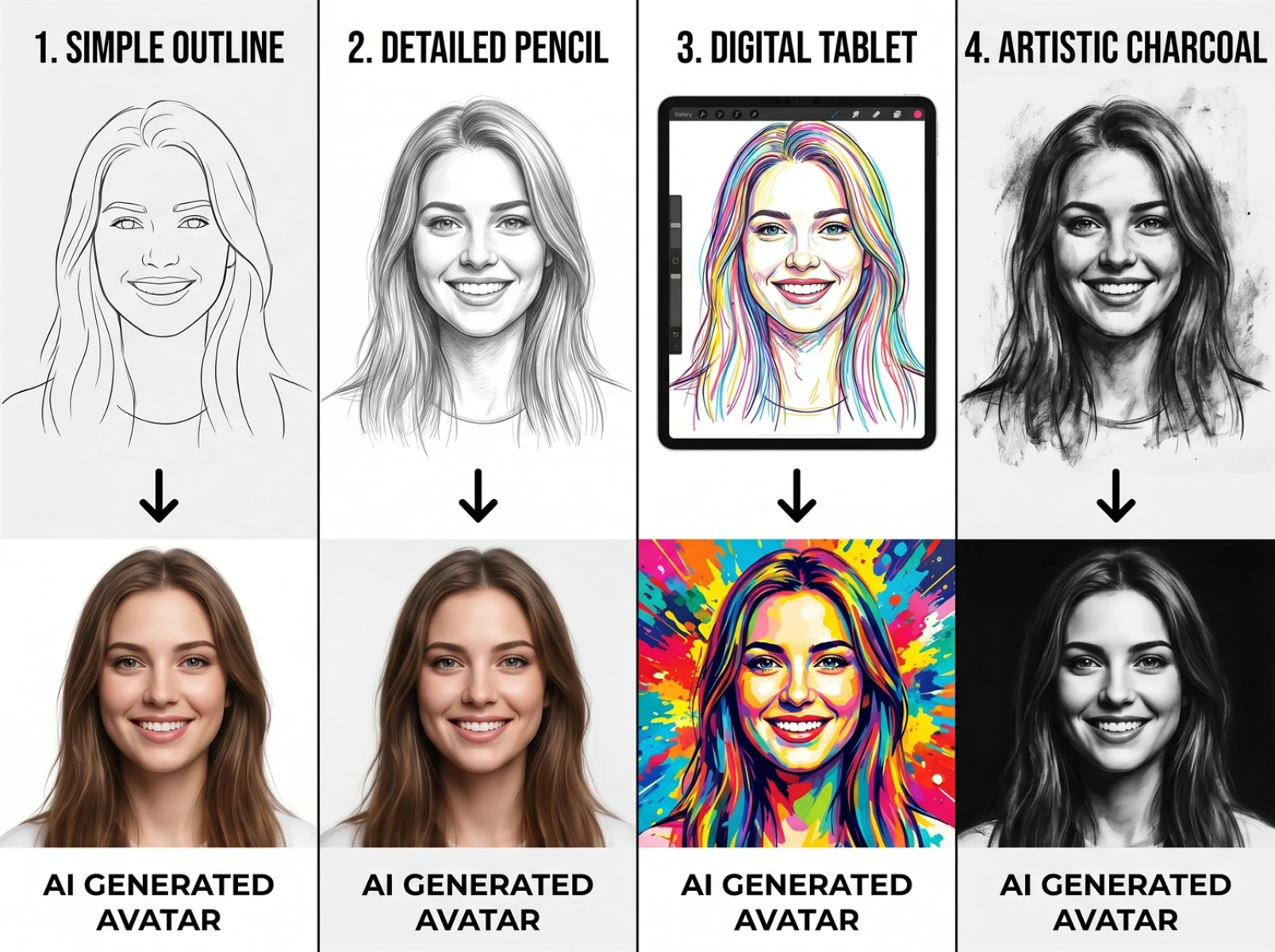
IV. Practical Tips to Improve Realistic Generation Texture
Based on thousands of Sketch-to-Image, Hand-drawn-to-Image, and Line Art-to-Image generation tests of Fast Image AI, here are 5 practical tips to easily produce high-quality realistic art images:
1. Highlight core realistic elements in sketches: When drawing realistic sketches, enlarge the realistic elements to be highlighted (exquisite facial features, clear textures, distinctive outlines) by about 20%. The Sketch-to-Image generator will automatically optimize the proportion and accurately present the core realistic highlights.
2. Add text labels to assist realistic recognition: Simply mark keywords next to the realistic sketch (such as “hyper-realistic portrait, short hair, soft lighting, delicate skin”), the AI can recognize the text prompts, making line art-to-image accurately match your realistic detail requirements.
3. Prefer 3/4 side or partial realistic composition: Choose a 3/4 side view for realistic figure sketches, highlight core parts for realistic still life sketches. Compared with front composition, hand-drawn-to-image effects are more natural and realistic finished products have a stronger sense of hierarchy.
4. Compare and select the best from multiple models: For the same realistic sketch, run Sketch-to-Image with High-Definition Realistic, Texture Realistic, and Fast Realistic models respectively, then select the optimal effect after comparison – more efficient than repeated optimization with a single model.
5. Save high-quality realistic prompt templates: Organize well-performing Sketch-to-Image prompt combinations (such as “hyper-realistic portrait, delicate lighting, soft natural light, high-definition details, 8K resolution”) for direct reuse in future line art-to-image conversions, greatly saving realistic optimization time.
V. Frequently Asked Questions
Can my simple realistic sketch generate good effects?
Absolutely! As long as the realistic sketch has a clear main outline and distinguishable core realistic elements, no professional realistic painting skills are required. Simple realistic sketches drawn casually in 3–5 minutes have a success rate of over 85% to generate high-quality realistic finished products via the Sketch-to-Image generator. Beginners can safely try hand-drawn-to-image and line art-to-image conversions.
Is Fast Image AI Realistic Generator free to use?
Yes! New users receive free generation credits upon registration, enough to generate 5–8 exquisite realistic art images, with full functions unlocked to experience Sketch-to-Image without restrictions. The free version supports basic hand-drawn-to-image and line art-to-image style generation. For advanced functions such as high-definition output, batch generation, and texture enhancement, you can upgrade to a membership with high cost-performance.
What is the difference between Fast Image AI and ordinary AI generators?
Fast Image AI focuses on Sketch-to-Image and accurate restoration of realistic sketches. It takes realistic hand-drawn lines as the core, strictly follows the sketch composition, realistic element proportions, and lighting logic, and accurately restores the original realistic conception in line art-to-image and hand-drawn-to-image conversions. Ordinary AI generators generate images only based on text, with realistic effects easily deviating from expectations and monotonous styles, unable to match your exclusive realistic creativity.
How long does it take to generate a realistic art image from a realistic sketch?
AI Sketch-to-Image generation takes only 8–15 seconds, much faster than similar tools. The complete process from drawing realistic sketches, digital processing, upload generation to optimization can be finished within 10 minutes for the first hand-drawn-to-image operation, and within 5 minutes for line art-to-image after proficiency, efficient and hassle-free.
Are realistic art images generated by Fast Image AI available for commercial use?
Yes! Images generated based on original realistic sketches via the Sketch-to-Image generator completely avoid copyright risks, with no issues related to portrait rights or material copyrights. They can be used for personal purposes such as realistic avatars, content matching, and collection display, as well as commercial purposes (cultural and creative products, realistic poster design, material sales, portrait customization) in full compliance. The platform’s license terms for hand-drawn-to-image and line art-to-image conversions are clear, so you can use them with confidence.
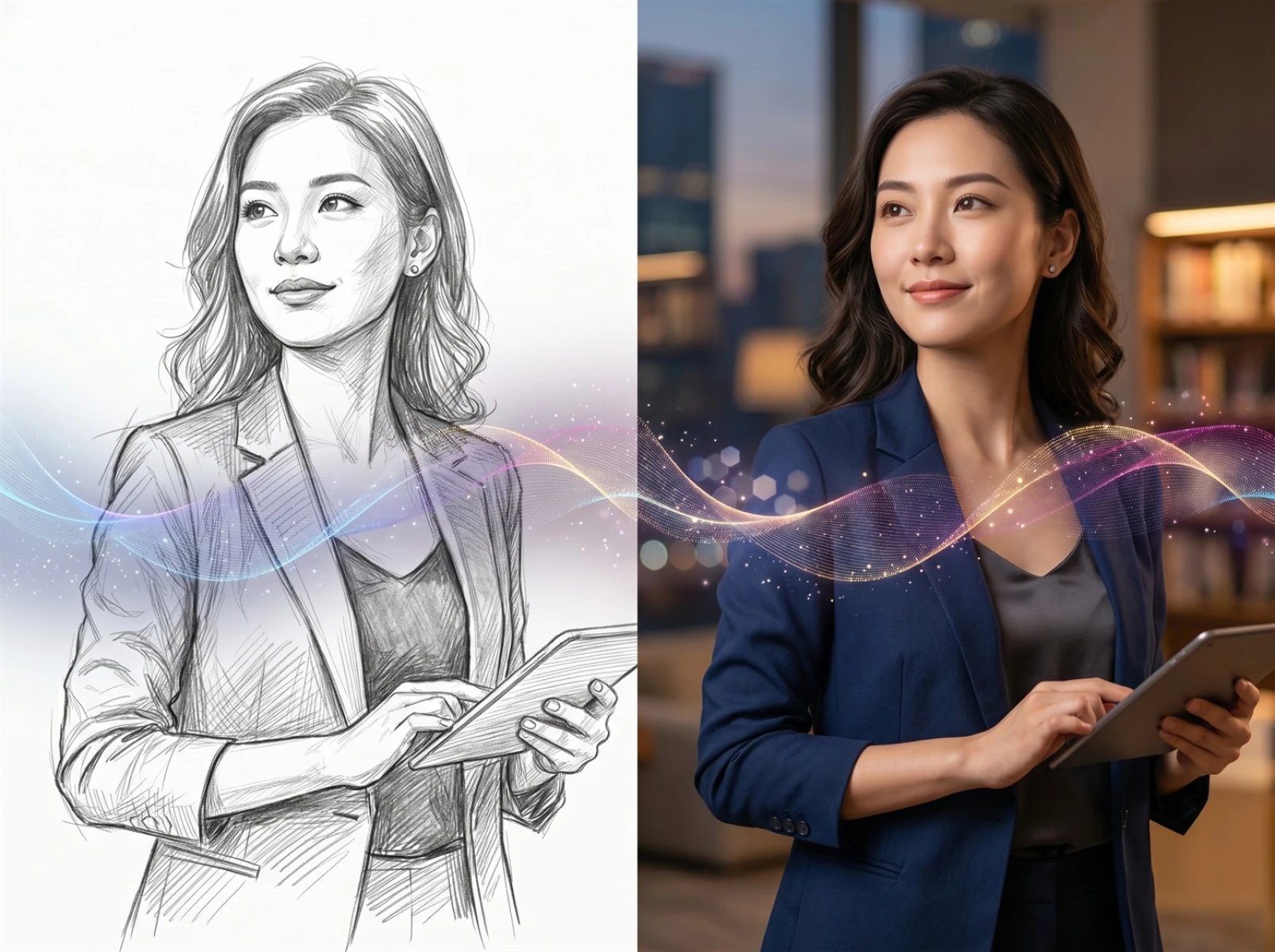
VI. Summary
Converting realistic sketches into exquisite realistic art images via Fast Image AI Sketch-to-Image only takes five steps: drawing realistic sketches, digital processing, upload generation, prompt optimization, and personalized post-processing. The whole process is efficient and convenient, and even beginners can easily master hand-drawn-to-image and line art-to-image conversions. Do not let high-quality realistic creativity be trapped on paper, and do not spend massive time polishing realistic details. Fast Image AI Sketch-to-Image generator accurately restores original realistic conception, and each realistic finished product is unique and lifelike. Want to quickly realize your realistic sketches? Try Fast Image AI for free now → upload your realistic sketches and unlock high-definition exquisite realistic art images in one click, making your realistic creativity monetized instantly!