Put a Santa Hat on Your Avatar in 10 Seconds - Use AI for a One-Click Christmas Makeover
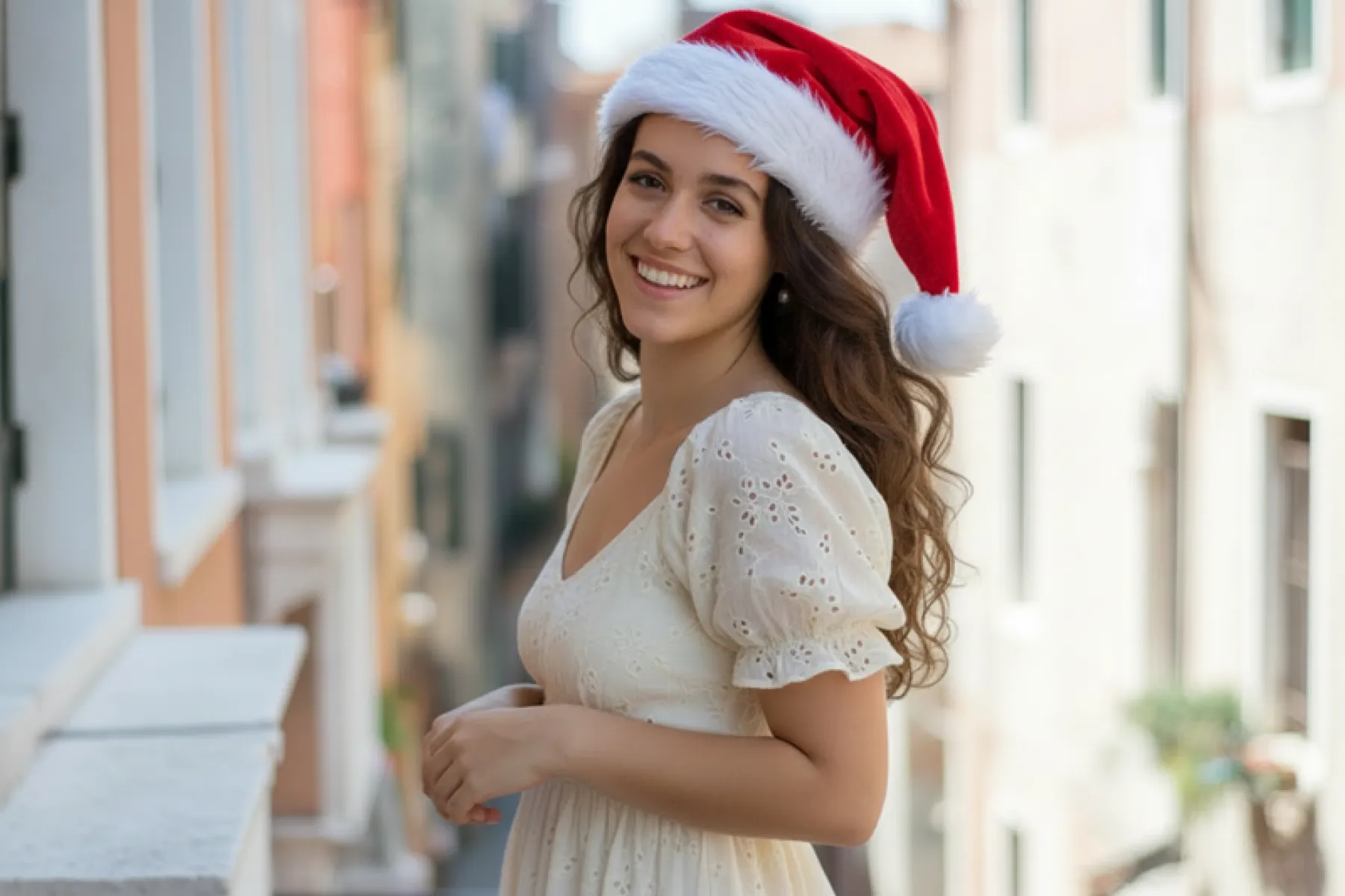
Every Christmas season, social media feeds, WeChat groups, corporate visuals, and online avatars get a festive makeover. In the past, you might have needed to find a designer, open Photoshop, or search online for “Christmas hat PNG” files and manually paste them onto your photo. Today, all these complicated steps can be completed by AI — and it only takes 10 seconds.
This article will show you how to use the “AI Image Generator” feature from Fast Image AI. With a simple “three-step process,” you can easily put a Christmas hat on any portrait, giving your photo an instant holiday vibe. No design skills needed. No complicated tools. Anyone can do it.
I.Why Do We Recommend Using AI to Add a Christmas Hat to Your Avatar?
1. No Design Skills Needed
Traditional Photoshop workflows are complicated for regular users. They require:Searching for materials、Cutting out objects、Scaling, rotating, adjusting backgrounds、Fixing color and lighting、Adjusting angles and blending edges。AI, however, automatically completes all these steps based on your prompt. You only need to say: “Add a Christmas hat to the avatar.”
2. Natural, Seamless Integration
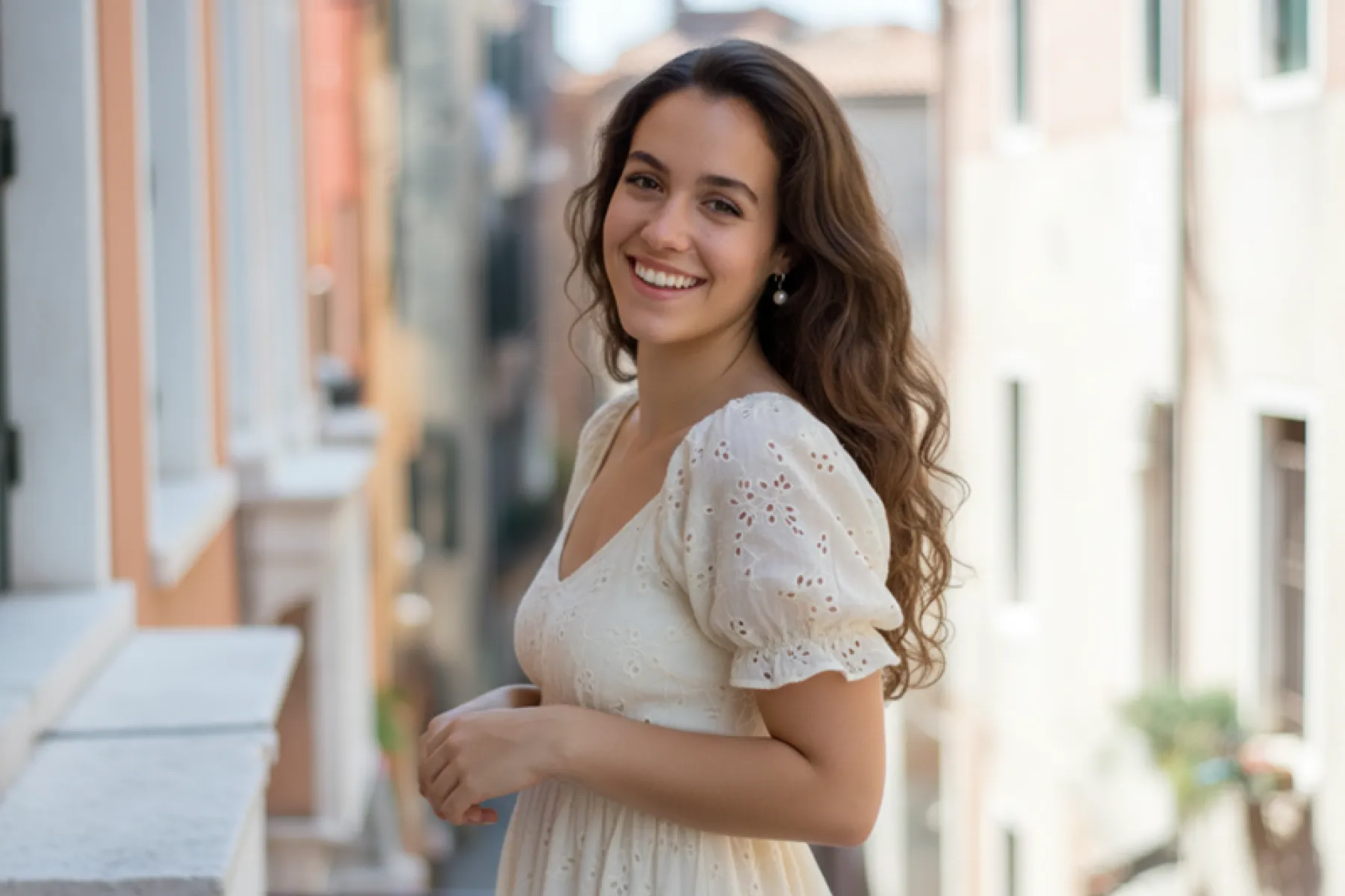
Fast Image AI’s No-Style Mode does not change the original artistic look, facial features, or texture of the uploaded image. Its purpose is “to modify the image according to your prompt without altering the original style.” This ensures the Christmas hat looks as if it naturally belongs in the photo.
II. What Is Fast Image AI’s “No-Style” Mode?
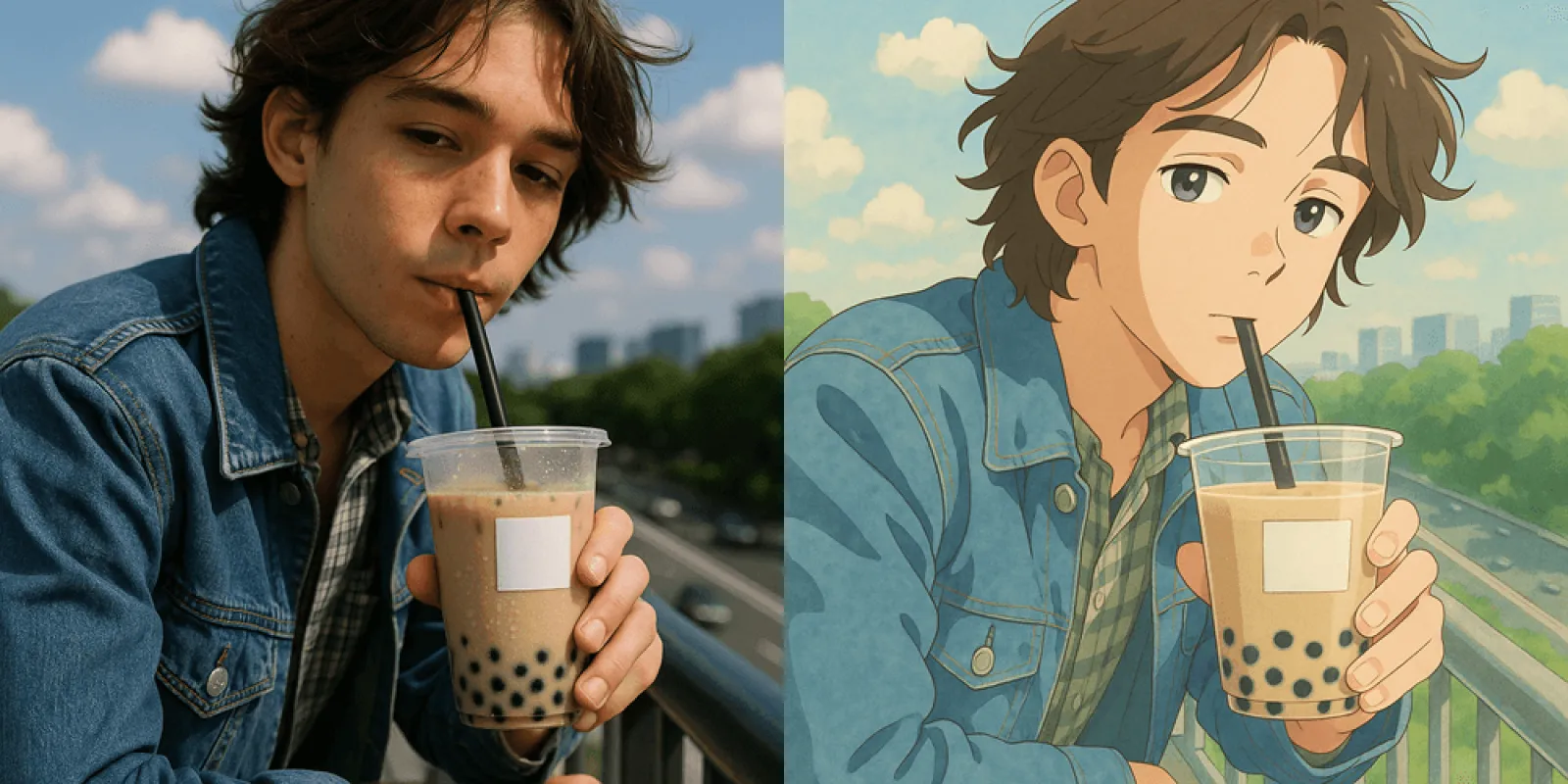
Fast Image AI supports multiple styles like sketch and Ghibli. But if you want to keep the original look — the skin tone, lighting, and photographic details — and only modify part of the image, you should choose “No-Style” mode.
Features of No-Style Mode:
- Does not change the overall style of the original picture
- Does not add filters, strokes, or additional effects
- Modifies image content precisely based on the prompt
This means: Upload a photo → Output remains a photo, just updated with your instructions. Examples: “Add a Christmas hat,” “Change background to snowy scene,” “Add Christmas décor,” etc.Thus, it’s the perfect mode for Christmas hat edits.
III. Three Steps: Complete Your Christmas Makeover in 10 Seconds
Step 1: Visit the Website and Upload Your Avatar
Open your browser and go to https://fastimage.ai.On the homepage, choose “No-Style” mode and click “Upload Image” to upload your portrait.
Recommended photo types:
- Frontal or side portraits
- Higher clarity = better results
- Natural lighting and clear subject edges
Step 2: Enter Your Prompt
In the prompt input box, type something like:
- “Add a red Christmas hat to the avatar.”
- “Place a cute Christmas hat on the person’s head.”
- “Add a red Christmas hat while keeping the original style.”
You may add details such as “fluffy velvet Christmas hat,” “add Christmas lights atmosphere,” “enhance the smile,” etc. But for simple requests, one sentence is enough.
Step 3: Select No-Style Mode and Generate
Select “No-Style” in the style bar — this is crucial.Then click “Generate”. Wait a few seconds (usually 5–10s).You will see:The avatar naturally wearing a Christmas hat,Lighting adjusted to match the original photo,Correct angle and perspective,Hat texture matching hair and head shape。It looks so natural that you can’t tell it was generated.
If you want multiple versions, click “Settings” and increase the number of generated images.
IV. How Good Are the Results? Why Does AI Look So Natural?
Fast Image AI’s content replacement technology is based on advanced generative models capable of local understanding and intelligent redrawing.
- The AI will automatically detect : Head position、Hair direction、Light and shadow、Overall color tone、Pose and perspective。
- Then it automatically:Creates a Christmas hat that matches the lighting、Adjusts the angle、Blends edges seamlessly、Preserves details of the original photo
Compared to simply “pasting a PNG,” AI achieves true seamless integration.
V. Prompt Optimization Tips: How to Make the Christmas Hat Look Better?
Try these enhancement techniques:
- Add descriptive details: “A large soft red Christmas hat,” “red-and-white velvet hat,” etc.
- Add texture: “With a white fluffy pom-pom,” “soft velvet texture,” etc.
- Control style: “Keep original style,” “keep lighting consistent.”
- Control facial expression:“Make the smile more visible,” “add a warmer expression.”
These will help you achieve a more customized and refined result.
VI. Conclusion: Make the Holidays Easier, Make Creativity More Free
Adding a Christmas hat may seem like a small task, but it represents a new way of creating content:Everyone can create.Everyone can get professional-quality results within 10 seconds.Holiday visuals no longer require professional software.Whether you are an individual, content creator, or business operator, Fast Image AI’s No-Style Mode is your efficient tool for holiday visuals.Let’s start with a small Christmas hat — and let AI bring more joy and creativity into life.